
1. Sign up on Heroku
2. Download and install the Heroku CLI
Go to the site, and download and install the Heroku CLI for your operating system. This will allow us to use the Heroku CLI when we’re deploying the application.
3. Generate a fresh Laravel application and build API
Navigate to a specific folder on your system that you want the application to reside in. Open your cmd and navigate to that folder, or use Git Bash. Type the following to generate a fresh Laravel 8 application.
composer create-project — prefer-dist laravel/Laravel <name-of-app>We’ll be naming our app herokuApp. Hence, the command above becomes:
composer create-project --prefer-dist Laravel/Laravel herokuAppThis will create a new project as herokuApp. After this, on the command line type cd herokuApp to move into the app folder. Once in the folder, type php artisan serve to start your Laravel server. You’ll see this. Our local Laravel application is now up and running.

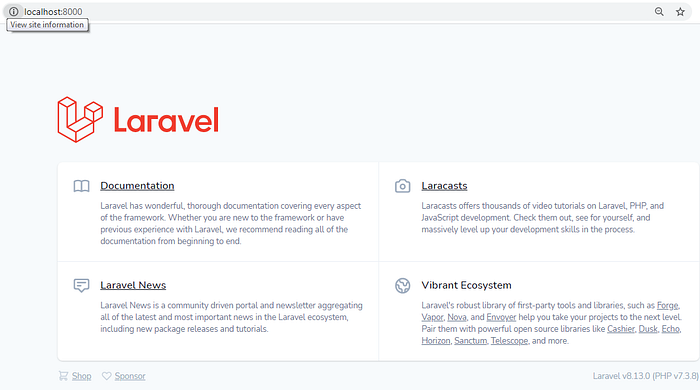
Alternatively, you can move the project folder inside your htdocs folder if you use XAMPP or the www folder if you use WAMP. Open as you would a normal PHP project.
You can now create your model, migrations, controller, and seeder for the database. The -m flag on the php artisan make:model Footballer -m helps us create a model and the corresponding migration table with a single command.

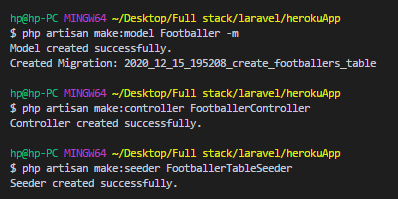
Next, update your Migrations table, and add the fields you need, as shown below.
<?phpuse Illuminate\Database\Migrations\Migration;use Illuminate\Database\Schema\Blueprint;use Illuminate\Support\Facades\Schema;class CreateFootballersTable extends Migration{/*** Run the migrations.** @return void*/public function up(){Schema::create(‘footballers’, function (Blueprint $table) {$table->id();$table->string(‘name’);$table->string(‘position’);$table->timestamps();});}/*** Reverse the migrations.** @return void*/public function down(){Schema::dropIfExists(‘footballers’);}}
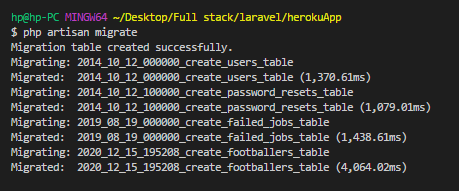
Run php artisan migrate to create the tables.

Open your FootballerTableSeeder.php file located in the database\seeder directory, and edit as shown below. This will help us populate the table with data.
<?phpnamespace Database\Seeders;use Illuminate\Database\Seeder;
use App\Models\Footballer;class FootballerTableSeeder extends Seeder
{
    /**
     * Run the database seeds.
     *
     * @return void
     */
    public function run()
    {
        //
        //This resets the table, deleting all the data everytime the function is called.
        Footballer::truncate();        Footballer::create([
            'name' => 'Sadio Mane',
            'position' => 'Winger',
        ]);        Footballer::create([
            'name' => 'Oxlade Chamberlain',
            'position' => 'Midfielder',
        ]);        Footballer::create([
            'name' => 'Virgil Van Dijk',
            'position' => 'Defender',
        ]);        Footballer::create([
            'name' => 'Allison Becker',
            'position' => 'Goalkeeper',
        ]);    }
}
Next, call the table in the DatabaseSeeder.php file located in the same folder as shown below.
<?phpnamespace Database\Seeders;use Illuminate\Database\Seeder;class DatabaseSeeder extends Seeder
{
    /**
     * Seed the application's database.
     *
     * @return void
     */
    public function run()
    {
        $this->call(FootballerTableSeeder::class);
    }
}
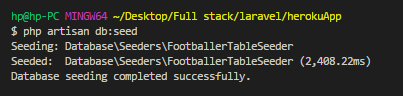
Run php artisan db:seed to actually seed the table.

This is a picture of our database. You can see that the data have been successfully saved in the database.
Now, lets create two API endpoints in the api.php file located in the routes folder, as shown below.
<?phpuse Illuminate\Http\Request;
use Illuminate\Support\Facades\Route;//Import Controller
use App\Http\Controllers\FootballerController;/*
|--------------------------------------------------------------------------
| API Routes
|--------------------------------------------------------------------------
|
| Here is where you can register API routes for your application. These
| routes are loaded by the RouteServiceProvider within a group which
| is assigned the "api" middleware group. Enjoy building your API!
|
*/Route::middleware('auth:api')->get('/user', function (Request $request) {
    return $request->user();
});Route::get('/footballers', [FootballerController::class, 'index'])->name('show.footballers');
Route::get('/footballers/{id}', [FootballerController::class, 'show'])->name('show.footballer');
Let’s now create the index and show functions in our controller in order to handle the logic.
<?phpnamespace App\Http\Controllers;use Illuminate\Http\Request;use App\Models\Footballer;class FootballerController extends Controller
{
    //
    public function index(){
        $footballers = Footballer::get()->toJson(JSON_PRETTY_PRINT);
        return response($footballers, 200);
    }    public function show($id=null){
        $footballer = Footballer::where('id', $id)->first();        //You can also use
        /*
        $footballer = Footballer::find($id);*/        if($footballer){
         $footballer = $footballer->toJson(JSON_PRETTY_PRINT);
         return response($footballer, 200);
        }
        else{
            return response()->json([
                "message" => "Footballer not found",
              ], 404);
        }
    }
}
The endpoints can now be reached at localhost:8000/api/footballers and localhost:8000/api/footballers/{id}.
Note that Laravel appends api automatically to your API path.
4. Create a Procfile
This is a kind of configuration file for Heroku. It helps to specify the commands that are executed by the app on startup. For example, you can put your app’s web server or worker processes, etc.
After creating the Procfile, add the following to the file: web: vendor/bin/heroku-php-apache2 public/.
5. Initialize Git, add files, and commit
We need to get the source code to Heroku. We’ll do this with the Git version control. First and foremost, you have to initialize a Git repository.
Type git init.
Laravel puts the files that aren’t needed or that shouldn’t be seen by the public in it’s .gitignore file by default. But if you’re building an application (that’s probably not Laravel), you should worry about creating a .gitignore file and adding these secret files and configs to it so they won’t be tracked by Git.
Add the files for staging, and commit them using git add. Then type git commit -m “message here”.
6. Log into Heroku
To log into Heroku, type Heroku login, and follow the prompt.
I was shown this because I’ve used it recently. If this were to be my first login attempt, I’d have been asked for my email and password.
7. Create Heroku application
Now, let’s move to Heroku fully. To create an application on Heroku, type heroku create app (name of app). If you don’t put a name for the app, Heroku will create a random name and URL for it; however, if the name already exists on the Heroku platform, you’ll have to find a new unique one.
Now if we go to our Heroku dashboard, we’ll see our application has been created already.
If you type git remote -v, you’ll see that Heroku has already supplied the correct path.
8. Push your code to Heroku, and begin the initial setup
To push the code to Heroku, run the command git push Heroku master. This will push the code to Heroku. Set up everything, and install the dependencies needed.
You can also see it on the dashboard that we want to use an Apache server based on the information we supplied to our Procfile.
Now, let’s open the application. Click on the “Open app” button. You’ll get a server error, as shown below.
This is happening because the environment-config variables needed for the application to work are located in our .env file (in the root directory) aren’t on Heroku yet. We can add these config variables in two ways:
- Add from your Heroku dashboard.
- Add from Heroku CLI.
I’ll show you the two methods. To add from the dashboard, go to your settings, and click on “reveal config vars.”
First, let’s add APP_DEBUG=true. This will allow us to see the specific errors instead of the generic 500 || Server Error.
If we refresh the page, we can now see what the actual error is. Since APP_DEBUG has been enabled, Laravel is telling us what’s wrong: There’s no application key.
Copy the application key into your .env file, and save it in Config Vars under settings, as we did for APP_DEBUG.
APP_KEY=value (check your .env file for this)
Now, if we refresh again, we’ll see the application is up and running, as shown in the image below.
We need to set the rest of the application’s configuration variables. We’ll do this using the second method (via the Heroku CLI).
We’ll use the command heroku config:add ENV_CONFIG=value. For instance, let’s add APP_NAME, APP_ENV and APP_URL to the config variables.
heroku config:add APP_NAME=Heroku-Football-App (Use the name of your app here)
heroku config:add APP_ENV=production
heroku config:add APP_NAME= https://heroku-footballer-app.herokuapp.com/ (Use the url of your app here)
Let’s now take a look at our config variables on Heroku. You’ll see the variables have been added to the list of config variables already.
9. Create the database
Our Laravel application is now live on Heroku. This is, however, just half of the journey. We’ll need to connect our database to our application.
We’ll be using PostgreSQL, but you can use any database you want — MySQL, MongoDB, etc. I find PostgreSQL easy to implement on Heroku. It’s very similar to MySQL, which we used in our local environment. Plus, they have a very friendly free package. I’ve used the Hobby Dev plan, which is free, in this tutorial. You can also get the paid versions if you need more scalability and capability.
So to use the database, we’ll install it as an add-on.
10. Get database credentials
We need to get the credentials of this database so we can integrate it with our application. This will give us the database login information, such as CONNECTION, NAME, PORT, USERNAME, PASSWORD, and HOST.
Luckily for us, it takes only a line of command on the Heroku CLI to get this done. This will bring out all the variables needed to set up your database. Type heroku pg:credentials:url.
First, we need to add the DB_CONNECTION as pgsql; then we add the database config variables to our list of config vars.
11. Migrate and seed your tables
Now that our database is set up, let’s run our migrations. To do this, run heroku run php artisan migrate.
On Heroku, under Resources, click the database. You’ll see the database now has all of the tables from our migration.
Furthermore, to see all of the tables in our database and to perform SQL queries, click on the Dataclips menu.
Click on “Create a new Dataclip.”
Let’s now seed our database with some data, as we did with the local version of our application.
heroku run php artisan db:seed
12. Test on Postman
You’ve made it. Our application is 100% completed. Now, let’s test it on Postman. We’ll test the same endpoints we tested in the local version.
13. Bonus step
In case you made a mistake or there are additions to your code, just do the following:
1. git add
2. git commit -m “message”
3. git heroku push master
4. And you’re done!
** To add existing heroku app to git
$ heroku git:remote -a accounts-ms
Thanks for reading.
0 Comments